
With this new Bluesky Insights connector for Google Sheets, you can finally connect your Bluesky account to a Google Sheet and visualize all data from your posts and account!
This connector retrieves profile and posts data from your Bluesky account and turns it into customizable tables in Google Sheet. Schedule daily exports, track engagement, activity trends, content types, and more.
On this page:
Step by step instructions on how to use Bluesky Insights for Google Sheets
Launching the Bluesky Insights sidebar
Open a Google Sheet, under the « Extensions » tab, select « Bluesky Insights for Google Sheets » and click on ‘Launch connector ».
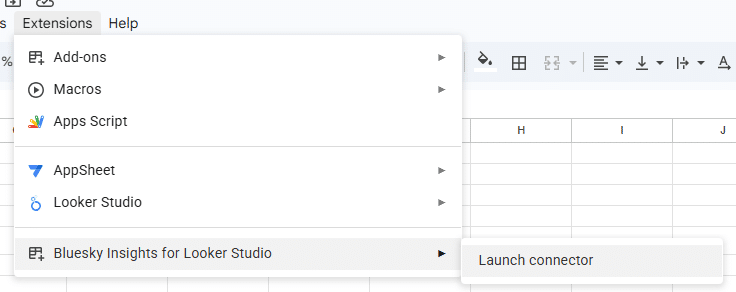
This will launch the sidebar below.
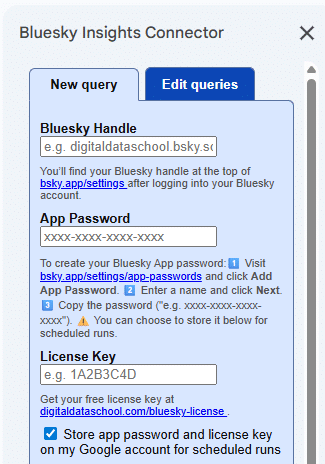
The 3 identifications steps
- Enter your Bluesky handle. You’ll find your Bluesky handle at the top of this page https://bsky.app/settings after logging into your Bluesky account
- Enter your Bluesky App Password. To create your Bluesky App password:
- Visit https://bsky.app/settings/app-passwords and click on the « Add App Password » button.
- Enter a name and click « Next ».
- Copy the password (« e.g. xxxx-xxxx-xxxx-xxxx ») and paste it into the connector’s App Password field.
- Get your license key here. Your free license gives you unlimited access until June 30, 2026. A fair pricing model will be decided collaboratively with early users before the end of the year.
If you plan to schedule your query to run every week, day or minute, check the box « Store app password and license key ».
Filling all fields you need
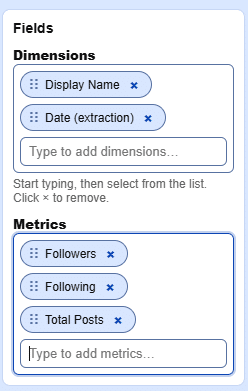
Dimensions fields: Start typing all dimensions you want to fetch and select them (in this example, the Name of the account and the extraction date).
Metrics field: Start typing all metrics you want to fetch (in this example, the number of followers, following and number of posts).
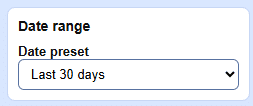
Date range
Select the period for which you wish to collect data. Warning, the date range only allows you to select posts made during the selected period. It won’t allow you to see past values. For example, you can’t see the number of followers your account had 25 days ago, even with a date range set to ‘Last 30 days », you’ll only see the current number of followers. All metrics served by Bluesky are « lifetime » metrics. This means that they are the values at the moment where you fetched them, you can’t go back in time.
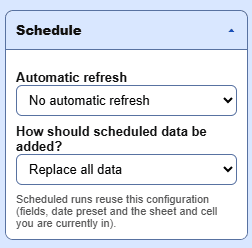
Schedule
Select how frequently who want to get you data: every month, week, day or hour. You have 3 options to add the data:
- Replacing all the previous data
- Adding the new data below the existing one
- Updating the existing data and adding the new one below. If you select this option, you’ll need to indicate the unique column you wish to use to recognize the existing data, so that the system understands if the data already exists or needs to be added.
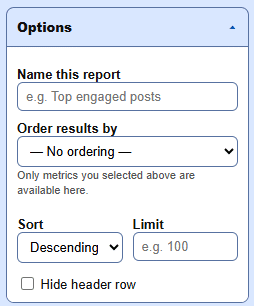
Options
Naming the report: can be useful later on, if you wish to edit your queries.
Ordering results: From the metrics you previously selected, select which one should be used to order your results. You can sort them from the smallest result to the biggest (ascending) or vice versa (descending). Setting a limit can be useful if you don’t need all results, but just the top xx.
Lastly, you can hide the header row if it isn’t neccessary to you.
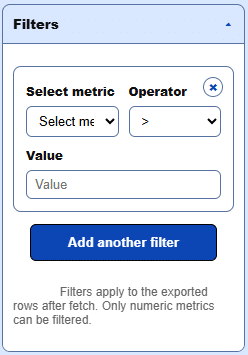
Filters
From all metrics you previously selected, you can use some of them as filters. If you do so, only the results matching with these criteria will be fetched.
Fetch data
Click this button and your data will be fetched! Think about using the « Schedule » options if you want your data to refresh regularily.

If you used the « Schedule » options, you’ll be able to edit your queries on the 2nd tab
Editing queries
On this tab, you’ll see all your previous queries (One is called DDS in this example below). You can either click on it to edit it, or click on « Open Queries sheet », which will take you where all queries are stored.
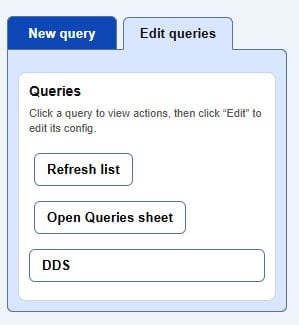
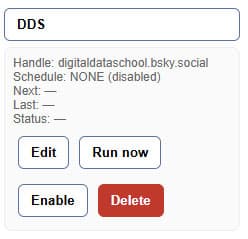
After clicking on your query to edit, you can either click on:
- Edit, to change some details.
- Run now, to re-run the query right now.
- Enable it, in case you previously stopped it.
- Delete it, once for all.
If you click on « Edit », you’ll see once again all queries parameters you previously configured
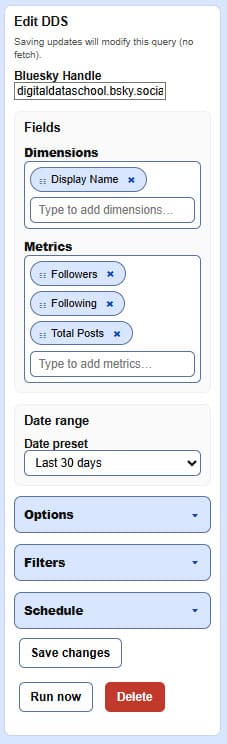
Click on « Save changes » to update your query. Click on « Run now » if you wish to refresh your previous query without having to wait for the next scheduled update.
List of available dimensions and metrics
Profile Dimensions
- Username: Your unique Bluesky handle.
- Display Name: The public name you set on your profile.
- Description: Your bio or personal introduction.
- Avatar URL: Direct link to your profile picture.
- Banner URL: Direct link to your profile banner.
- DID: Decentralized Identifier assigned by Bluesky.
- Handle: Another format of your username (may duplicate Username).
- Created At: Date your profile was created.
- Indexed At: Last time your profile was indexed by the connector.
Profile metrics
- Number of Followers: How many users follow your profile.
- Number Following: How many accounts you are following.
- Number of Posts: Total post count associated with your account.
Posts dimensions:
- Post Text: Content of the post.
- Post Date: Timestamp when the post was published.
- Post URI: Internal URI for referencing the post in APIs.
- Post URL: Public link to the post on bsky.app.
- Post ID: Unique identifier for each post.
- Post Type: Whether the post is an original, reply, or quote.
- Reply To (URL): Public link to the post being replied to (if applicable).
- Embed Type: The type of content embedded in the post (e.g., image, link).
- Embed URL: URL of the embedded content.
- Thumbnail URL: Link to a thumbnail image (if available).
Posts Metrics
- Likes: Number of likes a post has received.
- Replies: Number of replies to a post.
- Reposts: Number of times the post was reshared by others.
- Quotes: Number of times the post was quoted by others with a comment.
- Engagement Score: Sum of likes, replies, reposts, and quotes. Reflects total interactions.
- Media Count: Number of media elements (images, videos) in the post.
- Thread Depth: Level of nesting in a conversation thread (i.e., how deep a reply is).
Feedback & support
We welcome all feedback to improve this connector. If you encounter issues or have suggestions, please send us your feedback or request for support.
Privacy policy & terms of use
This privacy policy explains what data we access through our Looker Studio connector for Bluesky accounts, how we use it, how we protect it, and your rights. By using the connector, you agree with Bluesky Terms of Service and Google API usage policies, as stated in our tems of use.
Contact
For any questions about this policy or your data, please contact us at [email protected].